I just want to mention you do not miss this article which explains the revised Windows 10 servicing.
Actually its for the better. So MS extended the mainstream support for another 6 months in terms of servicing and support. Plus another 6 month paid servicing only. So you get one more year quality updates if you want.
Just to clarify what servicing and support means:
With servicing you receive public available quality updates. This does not include private hotfixes if needed.
Support means you can also call in and get potentially a private fix if its a bug. And it includes the quality updates from servicing as well.
But this additional servicing is limited to Enterprise and Education only!Another reason not to use Pro Version ;-)
While working with PowerShell you come sometimes to situations you need to control something on the machine not reachable right out of the box. So WMI is the answer to your question. Lots of things you can only trigger by WMI through PowerShell when it comes to automation also in combination with SCCM.
The main pain point is how to find the right thing at the right place. And then how to bring it into a PowerShell query. For both questions an easy answer is WMI Explorer.
As there is a specific script tab to create the needed PowerShell code. Here as example to figure out the used Processor.
Sometimes you need to search deeper to check why GPOs don't get applied.
Therefore you can enable the debug logging of the GPO client (service). Please DO NOT FORGET TO DISABLE IT AFTERWARDS!!!
To enable logging in the Gpsvc.log file, follow these step by step guide: 1. Click Start , click Run , type regedit , and then click OK . 2. Locate and then click the following registry subkey: HKEY_LOCAL_MACHINE\Software\Microsoft\Windows NT\CurrentVersion 3. On the Edit menu, point to New , and then click Key . 4. Type Diagnostics , and then press ENTER. 5. Right-click the Diagnostics subkey, point to New , and then click DWORD Value . 6. Type GPSvcDebugLevel , and then press ENTER. 7. Right-click GPSvcDebugLevel , and then click Modify . 8. In the Value data box, type 0x30002 , and then click OK . 9. Exit Registry Editor. 10. At a command prompt, type the following command, and then press ENTER: gpupdate /force 11. View the Gpsvc.log file in the following folder: %windir%\debug\usermode
Note - if the usermode folder does not exist under %WINDIR%\debug\ the gpsvc.log file will not be created. If the usermode folder does not exist, create it under %windir%\debug.
Normally I do not talk about single security vulnerabilities except there are really serious ones they are a little bit odd and out of the normal security scope (like patching vulnerable windows services which is done automatically during patch days). Here manual interaction is necessary! Today we talk about a serious one in Infineon TPMs. Its a bug in the firmware implementation which unfortunatelly affects many different models from many different vendors. It is CVE-2017-15361, also referred to as "Return of Coppersmith's Attack" (ROCA). ATTENTION! Application of firmware update is not enough! You will need additional steps depending on Microsoft services and functions you used with TPM before! e.g. Bitlocker, Active Directory etc!!!
If your hardware is a Surface device, firmware updates are yet not available as of October 10, 2017. Microsoft is working to make firmware updates available for following affected devices and will provide links to the updates when they become available.
Surface Book
Surface Pro 3
Surface Pro 4
Surface Studio
Surface Hub
Note that the Surface 3, Surface Laptop, and the Surface Pro released in June 2017 are NOT affected by this vulnerability. To check your own machine:
Apply the latest MS October 2017 kummulative patch!
I got my new surface book and docking station and thought this will boost my 2x27 inch screens. After docking my notebook I got a very blurry experience. After some research I found a solution. The reason are wrong settings you can easily fix. This solution is not limited to surface books. ;-)
Before:
After:
Solution: You need to make the external monitor as "main display". Also you need to sign of and on again while you are connected. After this your screen should be crisp and clear.
With the new release of Windows 10 - 1709 there is a great new feature out called "Windows Defender - Application Guard"
The idea is to limit the access to the system by isolating the browser experience and lock in hackers potentially using the browser to enter the system.
This feature let your Edge browser run in a VM for unknown websites. You will not experience a VM startup. It just feels like a "different private mode" in your browser.
A good idea - how it works behind the scenes - can be found in this video:
End-users know the difference by a visual representation.
You can manage it through GPOs telling which trusted websites (e.g. organizational websites) should be open in Edge normally also using the full set of Win32 APIs.
All other websites would be opened in the sandboxed version of Edge. The sandboxing is realized also by Hyper-V virtualization. It includes a kernel with a limited set of Win32 APIs to make it even harder to break in. But even if it is possible to break in the attacker is locked in the virtualization layer. When you close the browser the threat is also gone. As this is a non persistent environment.
Additionally this is tied into Windows Defender Advanced Threat Protection. So you get even notified if someone tried to compromise your environment.
And to get the FULL CURRENT (1709) holistic Microsoft Security view. Please checkout this recent video. Which covers more than just Application Guard which is one brick in a bigger wall.
To enable it is relatively simple (depending HW reqs.)
But you need to fulfill the requirements:
Windows 10 Enterprise SKU only
PC must support Hyper-V (some older PCs may not support Hyper-V or have this feature disabled in BIOS)
Windows Defender Application Guard is Off by default, it must be enabled manually or by policy
When you follow these limits and you enable GuestVirtualization in the Hyper-V (only possible via Powershell) then it works also in a VM.
Otherwise the feature is greyed out!
Currently WDAG reacts a bit tricky with Updates. So it worked in 16299.19 in English-US version of Windows. Update KB4043961 broke the feature so you need to dismiss this update. Also other languages may not work right away. But in later version onwards 17035 is also starts to working in German again.
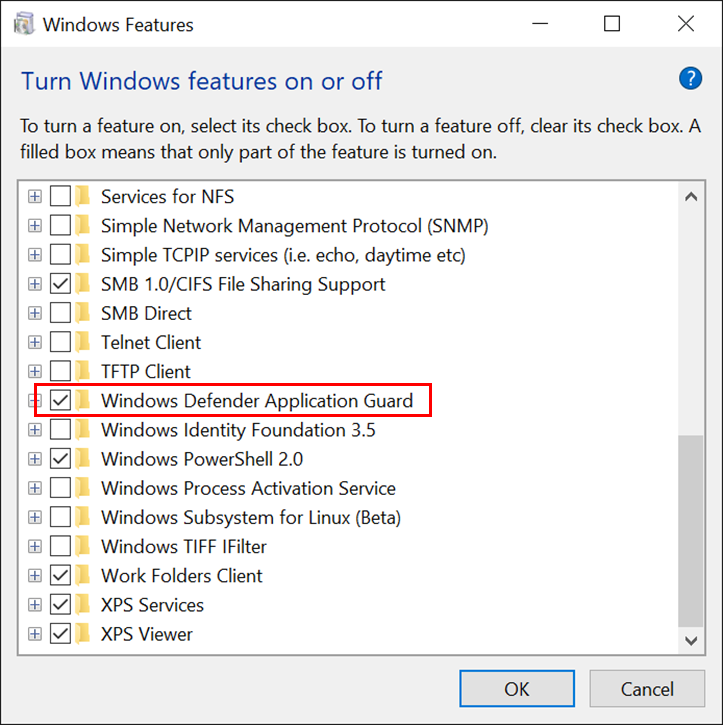
1. You need to enable Windows Application Guard in the "Windows Features"
2. You need to setup the Policies for WDAG (very important!)